Last updated: October 22, 2026
Quick Answer: For most beginners, Coding Kits for Kids: Choosing the Right Level for Beginners starts with block coding, short projects, and a device the child can already use. A good first kit usually gets a beginner from zero to a finished project in 20 to 45 minutes, with no long setup and no need to type code by hand.
Key Takeaways
- Pick the level that fits reading, motor skills, and attention span.
- Block coding usually works best first because it avoids syntax errors.
- Choose a kit that matches the device already in the home.
- Start with a one-screen project that finishes in under 30 minutes.
Coding Kits for Kids: Choosing the Right Level for Beginners work best when the kit matches the learner’s age, attention span, and device setup. The right choice is not “the most advanced one”; it is the one that lets a beginner finish a first project without getting stuck on installation, typing, or tiny on-screen menus.
What a good first coding kit should do
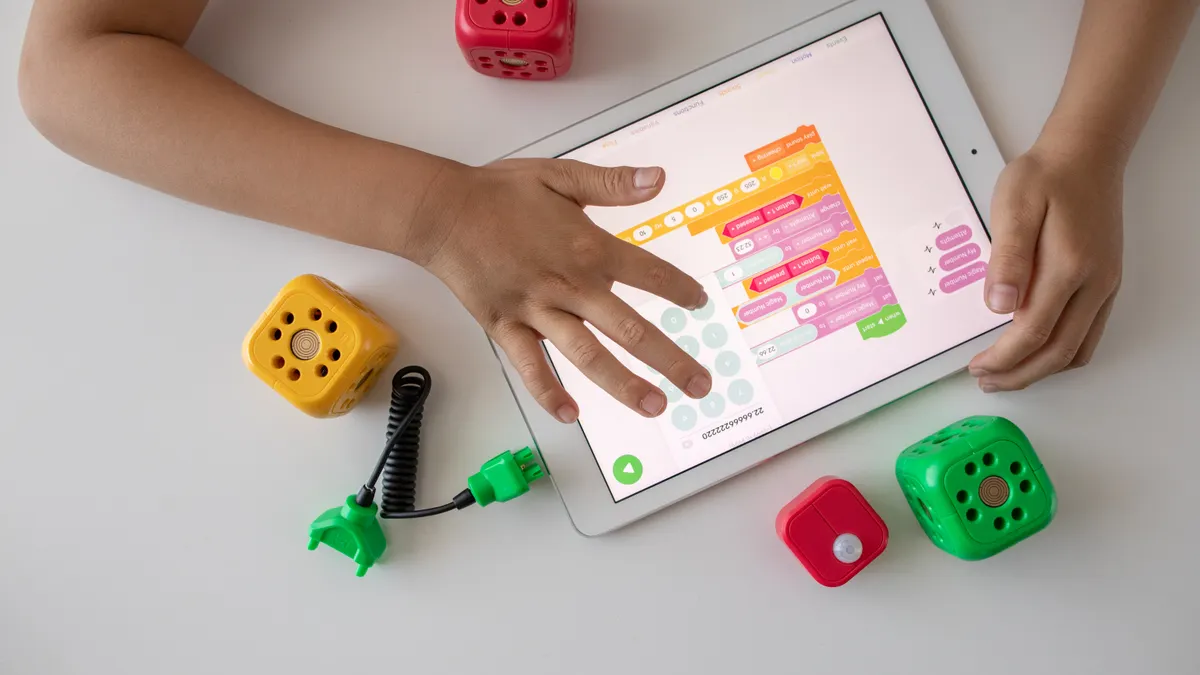
A good first coding kit should get a beginner from zero to a finished project in 20 to 45 minutes, with no long setup and no need to type code by hand. That matters because the first win is what keeps a kid coming back.
A useful kit usually has three things:
- Block coding instead of text code at the start
- Short, visual tasks with one clear goal per lesson
- Device support that fits the family’s hardware, usually a tablet or laptop
For younger beginners, the coding itself should feel like arranging puzzle pieces. Drag-and-drop blocks let a child focus on logic—sequence, loops, conditionals—without fighting spelling errors or punctuation. A programming game can do the same job if it teaches cause and effect through play rather than through long explanations. See Scratch, Code.org, and Common Sense Education for examples of block-based learning environments.
A weak kit looks flashy but asks too much too soon. If a six-year-old must read dense instructions, manage multiple tabs, and debug text commands, the kit is too hard. If a ten-year-old finishes every challenge in two taps with no real problem-solving, the kit is too easy. Both cases waste the money and the attention span.
The sweet spot is a kit that makes the next step slightly harder than the last one. One project might ask for simple motion. The next adds timing. The next combines two ideas, such as a loop plus a sound cue. That progression matters more than the number of pieces in the box.
If the goal is a first introduction rather than a deep class, a kit that uses block coding first and only introduces text later is often the most practical fit. That choice is not for a child who already enjoys typing scripts or wants a more advanced platform on day one. For a true beginner, the simplest path is usually the strongest one.
Which level fits your beginner’s age and attention span?
The right level is the one that matches reading ability, fine-motor control, and how long the beginner can stay with one problem. Age labels on a box are a starting point, not the whole answer.
A practical way to sort kits:
- Ages 5 to 7: very visual, short sessions, heavy guidance, minimal reading
- Ages 8 to 10: block coding, simple logic, more independent setup
- Ages 11 and up: block coding or early text coding, depending on confidence and typing skill
For the youngest beginners, look for big icons, few menu layers, and activities that can be completed in 10 to 15 minutes. A kit that needs a lot of reading or precise dragging will frustrate this group fast. If the kit includes a toy-like interface or a programming game with simple puzzles, that usually helps.
For ages 8 to 10, the ideal kit can introduce loops, events, and simple debugging. A beginner in this range can usually handle more structure, but the first session should still feel approachable. If the kit jumps straight into variables or long code blocks, it may be too steep.
For older beginners, the question changes. A 12-year-old who is curious about how software works may outgrow a purely toy-like format. That learner may do better with a kit that offers block coding now and a path into text later. A laptop is often the better device here because keyboard input matters more.
One common mistake is choosing by maturity alone. A thoughtful 9-year-old may still need a slower start if the interface is busy. Another mistake is assuming older kids should skip block coding entirely. Block coding is not “baby coding.” It is a clean way to learn logic before syntax gets in the way.
I would avoid very advanced starter kits for anyone who still needs help reading multi-step directions. The right level is the one that creates enough challenge to feel real, but not so much that every session turns into troubleshooting.
Should you choose block coding or text-based coding first?
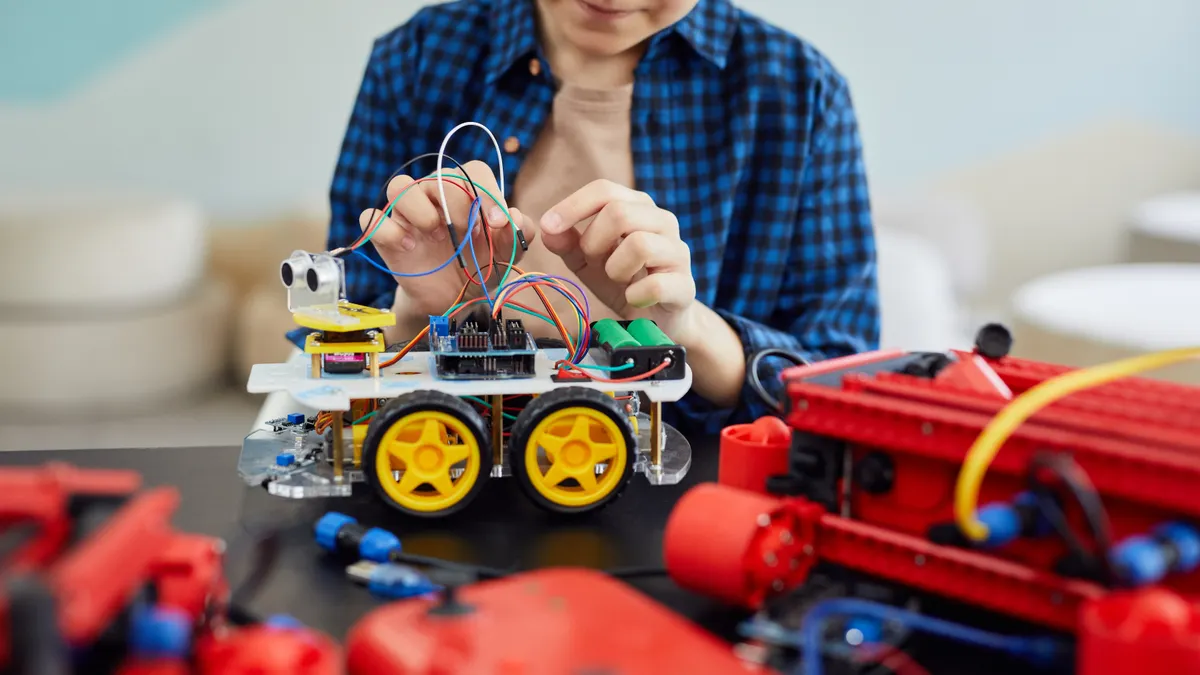
Block coding is the better first choice for most beginners because it removes syntax errors and lets them practice logic before typing code. Text-based coding makes sense later, or right away only for an older beginner who already types comfortably and wants a harder start.
Block coding works by snapping visual pieces together. That lowers the friction. A beginner can see the structure of a program, move pieces around, and fix mistakes without hunting for a missing semicolon. It is especially useful in a first coding kit for kids because the point is to understand how commands connect, not to memorize exact spellings.
Text-based coding teaches a different skill set. It builds comfort with syntax, precision, and debugging in a real programming language. That is valuable, but it is a rougher on-ramp. A missing character can stop a project cold, and that can overshadow the actual lesson.
A practical rule:
- Choose block coding for first exposure, especially under age 10
- Choose mixed block + text if the learner already understands loops and events
- Choose text-first only if the beginner is older, patient, and ready for more friction
The trade-off is depth versus accessibility. Block coding is easier to start, but it can feel limited if the kit never grows beyond simple puzzles. Text coding is more authentic to professional programming, but it can scare off a beginner who only wanted to make something move on the screen.
For most families, a kit that starts with block coding and offers a bridge to text later is the better buying decision. That avoids the dead-end problem. A beginner can get early wins now and still have room to grow.
This is not the right choice for a learner who wants a serious introduction to Python or JavaScript from the first day. In that case, a different learning path may fit better than a beginner kit marketed for kids. For context on entry-level programming paths, see Python.org and JavaScript.info.
How to match the kit to your device setup
The right kit must fit the device already in the house, because a great lesson fails if the tablet or laptop cannot run it properly. Device compatibility is one of the most overlooked parts of choosing a coding kit.
Start with the hardware:
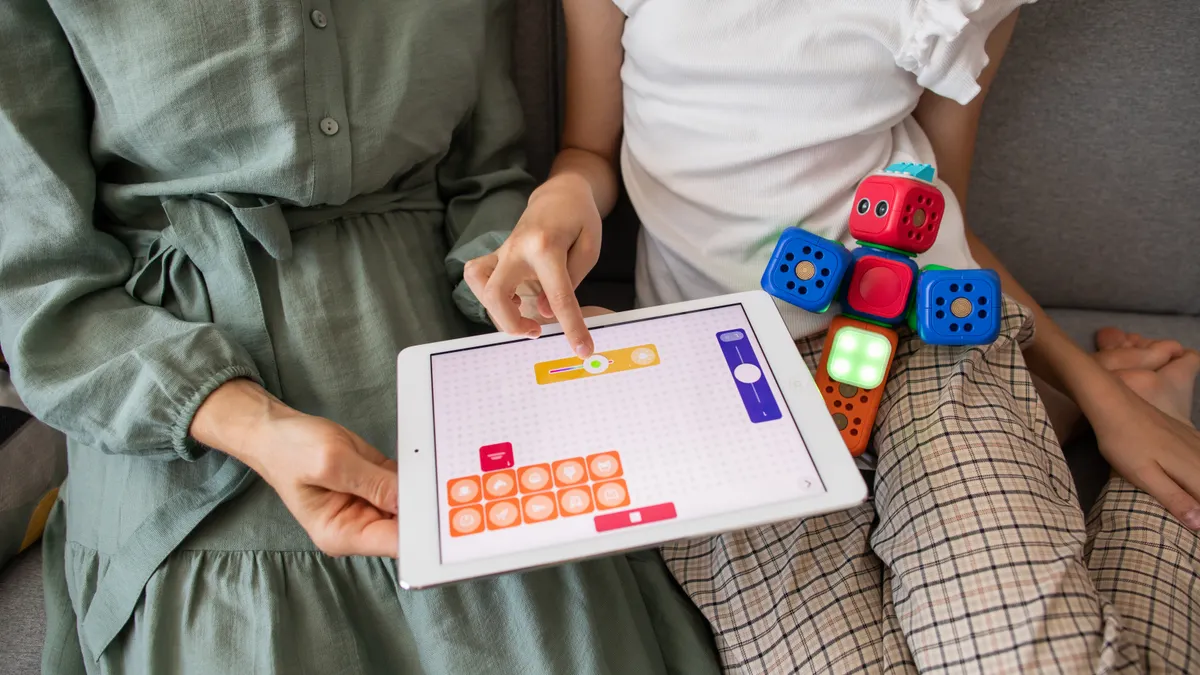
- Tablet: good for touch-friendly block coding and younger users
- Laptop: better for typing, browser-based lessons, and more complex menus
- Shared family device: workable, but only if the kit supports multiple profiles or simple login
A tablet is often the easiest start for a younger beginner. Touch controls make drag-and-drop simple, and the screen layout is usually friendlier for short tasks. The downside is that some kits become awkward on a smaller screen, especially if the child needs to switch between a lesson panel and the coding area.
A laptop gives more breathing room. The keyboard helps once a learner starts typing names, labels, or code snippets. A browser-based kit can also be easier to manage on a laptop if the setup is mostly web based. If the kit needs a webcam, microphone, or downloads, check those requirements before you buy. For device and browser basics, see Apple support and Google Chrome support for current compatibility guidance.
Here is a practical way to check compatibility:
- Read the device requirements first. Look for operating system, browser, app, and storage needs before looking at features.
- Match the screen size to the interface. A busy coding dashboard usually works better on a laptop than on a small tablet.
- Check login and account setup. A beginner should not need a parent to solve account problems every time.
- Look for offline limits. Some kits need constant internet access; others work after the lesson loads.
- Confirm accessory needs. If the kit uses sensors, a stylus, or a separate controller, make sure those parts are included or easy to replace.
The biggest mistake is buying a kit for the content and ignoring the device. A strong lesson on the wrong screen becomes a struggle. Another mistake is assuming any tablet is enough. Some interfaces are designed for desktop-style navigation and feel cramped on touch devices.
When device access is limited, I would favor the simplest interface over the fanciest curriculum. A beginner will learn more from a usable kit on an older laptop than from a polished kit that fights the hardware.
What project difficulty should a beginner start with?
The best first project is a one-screen task that takes under 30 minutes and teaches one new idea at a time. That size gives a beginner a finish line without creating a wall of instructions.
Good starter projects include:
- Moving a character across a screen
- Making a sound play on a button press
- Using one loop to repeat an action
- Combining two events, such as click and movement
A beginner does not need a huge project on day one. A small, complete result is better than a sprawling activity that never gets finished. The goal is not to impress anyone. The goal is to teach the cause-and-effect pattern behind code.
The difficulty should rise in small steps. If lesson one asks the learner to drag a character, lesson two might add a repeat block, and lesson three might add an if/then choice. That sequence builds confidence while keeping the logic visible.
Watch for kits that bury the coding under craft work or long storytelling. Those can be fun, but they can also hide the actual skill. A beginner can leave feeling entertained without learning how the code worked. That is fine for some families, but it is not a good fit if the main goal is to learn programming basics.
A real beginner-friendly kit should also make mistakes safe. If the learner can undo a step in one click, restart a project without losing everything, and see the result immediately, the frustration stays low.
I would not choose a kit whose first project takes several hours or requires constant adult intervention. Those kits may suit older learners or classrooms, but they are usually too heavy for a first home experience.
How to tell a beginner-friendly kit from a frustrating one
A beginner-friendly kit is simple to start, clear to read, and hard to get lost in. A frustrating kit usually fails one of those three tests.
Look for these signs of a good fit:
- One clear project path, not a maze of choices
- Block coding on the first screen
- Instructions with pictures or short sentences
- Fast feedback when a block is moved
- A clean jump from one lesson to the next
Look for these warning signs:
- Too many menus before the first activity
- Small text that assumes confident reading
- Lessons that mix setup, code, and troubleshooting all at once
- Projects that depend on perfect typing from the start
- A screen layout that feels crowded on a tablet
A common buying mistake is choosing the kit with the longest feature list. Long feature lists often hide a steep learning curve. Another mistake is aiming too high because the learner “likes technology.” Enjoying games or apps is not the same as being ready for detailed coding work.
What matters most is that the kit feels easy enough to open and use, with the first success arriving quickly. That is not laziness; it is design. The fewer obstacles between the learner and the first success, the better the chance the kit gets used more than once.
One good benchmark is this: if the beginner cannot explain the project goal back in one sentence after the first lesson, the kit may be too dense for that level. Another benchmark is whether the learner can repeat a similar task on a second day without starting from scratch with adult help.
For readers comparing options, a lower level is often the safer choice if it still leaves room to grow. That is the same principle that applies to the broader STEM kits for kids guide: match the tool to the learner, not the marketing claim.
The right choice for most beginners
The right coding kit for kids is usually a block-coding starter kit on a tablet or laptop, with short projects and a clear path to harder tasks later. That setup gives beginners the fastest route to a real first win without forcing them into text code too soon.
I would pick that format for most children ages 5 to 10, and for older beginners who are new to programming and want a low-stress start. I would skip it for a learner who already knows basic logic and wants immediate text-based coding, because a simple block kit will feel too slow.
The real decision is not “which kit has the most features.” It is “which kit will still feel usable after the first afternoon.” If the answer is yes, the beginner is much more likely to keep going.
Drafted with AI; not yet reviewed by a person.